
ArcBox Environment
ArcBox Environment Reference
Section titled “ArcBox Environment Reference”Credentials will be provided by your facilitator on the day of the workshop.
Environment Overview
Section titled “Environment Overview”Your team has access to an Azure Jumpstart ArcBox for IT Pros environment. This simulates an on-premises datacenter running on Hyper-V.
Architecture Diagram
Section titled “Architecture Diagram”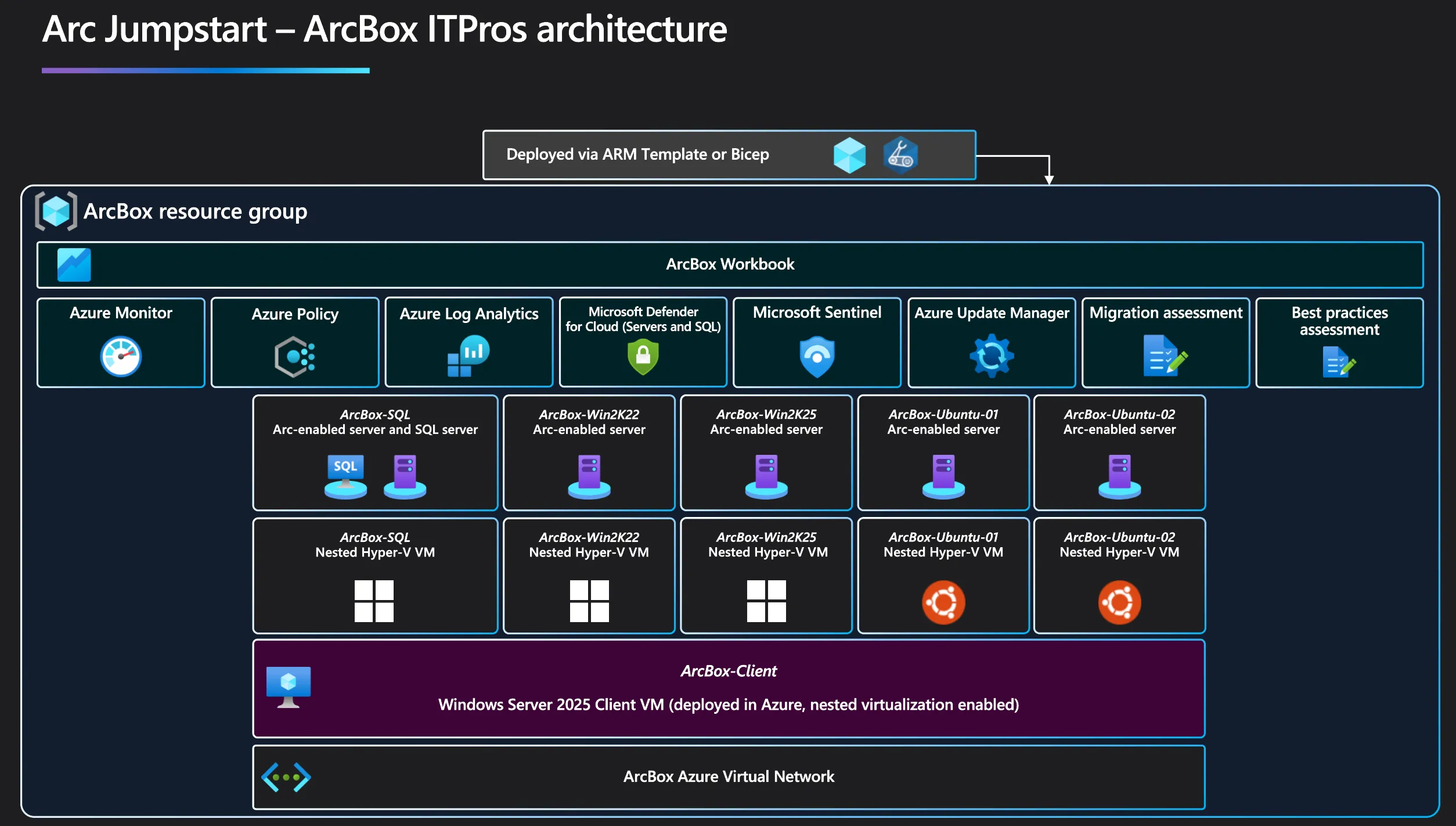
Source: Azure Arc Jumpstart — ArcBox for IT Pros
Server Inventory
Section titled “Server Inventory”| VM Name | Operating System | Role | IP Address |
|---|---|---|---|
| ArcBox-Client | Windows Server 2022 | Hyper-V Host (jump box) | Provided by facilitator |
| ArcBox-Win2K22 | Windows Server 2022 | Application Server | 10.10.1.100 |
| ArcBox-Win2K25 | Windows Server 2025 | File Server | 10.10.1.101 |
| ArcBox-SQL | Windows Server 2022 + SQL 2022 | Database Server | 10.10.1.102 |
| ArcBox-Ubuntu-01 | Ubuntu 22.04 LTS | Web Server | 10.10.1.103 |
| ArcBox-Ubuntu-02 | Ubuntu 22.04 LTS | Monitoring Server | 10.10.1.104 |
Credentials
Section titled “Credentials”ArcBox-Client (Hyper-V Host)
Section titled “ArcBox-Client (Hyper-V Host)”| Setting | Value |
|---|---|
| Username | [Provided by facilitator] |
| Password | [Provided by facilitator] |
| Connection | RDP or Azure Bastion |
Windows Nested VMs (Win2K22, Win2K25, SQL)
Section titled “Windows Nested VMs (Win2K22, Win2K25, SQL)”| Setting | Value |
|---|---|
| Username | Administrator |
| Password | [Provided by facilitator] |
Linux Nested VMs (Ubuntu-01, Ubuntu-02)
Section titled “Linux Nested VMs (Ubuntu-01, Ubuntu-02)”| Setting | Value |
|---|---|
| Username | arcbox |
| Password | [Provided by facilitator] |
SQL Server (on ArcBox-SQL)
Section titled “SQL Server (on ArcBox-SQL)”| Setting | Value |
|---|---|
| Authentication | Windows Authentication |
| SA Password | [If applicable, provided by facilitator] |
Connecting to ArcBox-Client
Section titled “Connecting to ArcBox-Client”Option 1: Direct RDP
Section titled “Option 1: Direct RDP”- Open Remote Desktop Connection
- Enter the public IP:
[Provided by facilitator] - Log in with credentials above
- Wait for post-deployment scripts to complete (~10–20 min on first login)
Option 2: Azure Bastion
Section titled “Option 2: Azure Bastion”- Navigate to Azure portal
- Find
ArcBox-ClientVM - Click Connect → Bastion
- Enter credentials
Hyper-V Manager
Section titled “Hyper-V Manager”Once connected to ArcBox-Client:
- Open Hyper-V Manager (pinned to taskbar)
- View all nested VMs
- Right-click any VM → Connect to open console
- Right-click → Settings to view configuration
Checking VM Status
Section titled “Checking VM Status”All nested VMs should be in Running state. If not:
- Right-click the VM
- Select Start
- Wait for boot to complete
Network Configuration
Section titled “Network Configuration”Internal Network
Section titled “Internal Network”| Network | Subnet | Purpose |
|---|---|---|
| ArcBox-Internal | 10.10.1.0/24 | Nested VM network |
| External Switch | DHCP | Internet access |
| Server | IP |
|---|---|
| Primary DNS | 10.10.1.1 (ArcBox-Client) |
| Secondary DNS | Azure DNS |
Azure Migrate Appliance Network Requirements
Section titled “Azure Migrate Appliance Network Requirements”When you deploy the Azure Migrate appliance, it needs:
| Port | Protocol | Purpose |
|---|---|---|
| 443 | HTTPS | Azure communication |
| 44368 | HTTPS | Appliance configuration manager |
| 5985 | HTTP | WinRM to Hyper-V host |
| 5986 | HTTPS | WinRM secure |
Pre-Installed Tools on ArcBox-Client
Section titled “Pre-Installed Tools on ArcBox-Client”| Tool | Purpose |
|---|---|
| Hyper-V Manager | VM management |
| Azure CLI | Azure commands |
| Azure PowerShell | Azure automation |
| VS Code | Code editing |
| Edge Browser | Web access |
Post-Deployment Scripts
Section titled “Post-Deployment Scripts”When you first RDP into ArcBox-Client, automated scripts run to configure nested VMs, onboard to Azure Arc, set up networking, and install agents.
Wait time: 10–20 minutes after first login.
Check status: Look for completion message on desktop or in C:\ArcBox\Logs.
Troubleshooting
Section titled “Troubleshooting”Can’t RDP to ArcBox-Client?
Section titled “Can’t RDP to ArcBox-Client?”- Check NSG rules allow port 3389
- Verify the VM is running in Azure portal
- Try Azure Bastion instead
Nested VMs not starting?
Section titled “Nested VMs not starting?”- Check ArcBox-Client has enough memory
- Verify Hyper-V role is enabled
- Check Event Viewer for errors
Can’t reach nested VMs from appliance?
Section titled “Can’t reach nested VMs from appliance?”- Verify network switch configuration
- Check IP addresses in Hyper-V Manager
- Test ping connectivity
Post-deployment scripts stuck?
Section titled “Post-deployment scripts stuck?”- Check
C:\ArcBox\Logsfor errors - Wait longer (can take 20+ minutes)
- Ask facilitator for assistance