
Advanced Networking
Network design significantly impacts Azure Local performance and reliability. This section covers advanced networking patterns used in enterprise deployments.
Software-Defined Networking Architecture
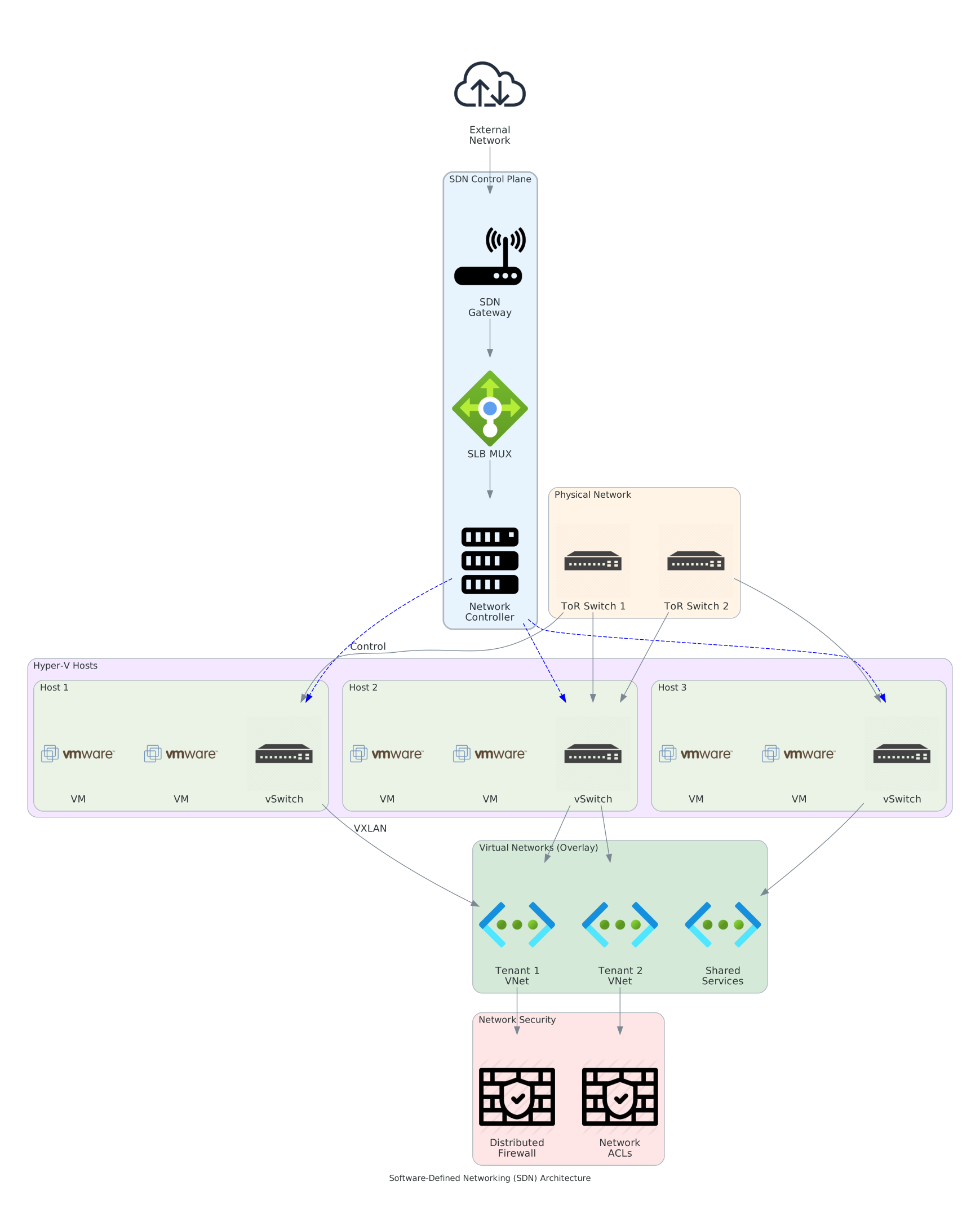 Figure 1: Azure Local Software-Defined Networking (SDN) architecture
Switch Embedded Teaming (SET)
Section titled “Switch Embedded Teaming (SET)”Modern Azure Local deployments use SET for network adapter redundancy and performance.
Basic Concepts
Section titled “Basic Concepts”What is SET?
- Virtual switch-based teaming (replaces older NIC teaming)
- Hardware-independent
- Built into Hyper-V switch
- Supports bandwidth aggregation and failover
Teaming Modes:
- Switch-Independent: Each team member operates independently
- LACP (Link Aggregation Control Protocol): Coordinated with physical switch
- Static: Simplified LACP without negotiation
Configuration
Section titled “Configuration”Creating SET Teams:
New-VMSwitch -Name "ConvergedSwitch" -NetAdapterName @("NIC1", "NIC2") `  -AllowManagementOS $true -EnableEmbeddedTeaming $true
Set-VMSwitch -Name "ConvergedSwitch" -DefaultFlowMinimumBandwidthWeight 20
Benefits:
- Automatic failover (sub-second)
- Load balancing across adapters
- No special switch configuration needed (switch-independent mode)
- Native Hyper-V integration
VLAN Configuration
Section titled “VLAN Configuration”VLANs logically separate network traffic without physical separation.
VLAN Planning
Section titled “VLAN Planning”Management VLAN:
- Management OS network
- Azure Local system management
- Out-of-band connectivity
- Typical: VLAN 100-199 range
Storage VLAN:
- Storage Spaces Direct replication
- RDMA-optimized
- Ultra-low latency requirement
- Typical: VLAN 200-299 range
Cluster VLAN:
- Inter-node cluster communication
- Heartbeat and status monitoring
- Moderate latency tolerance
- Typical: VLAN 300-399 range
Customer VLANs:
- Virtual machine workload networks
- One or more per tenant
- Isolated for security
- Typical: VLAN 400-4000 range
VLAN Tagging
Section titled “VLAN Tagging”Physical Port Configuration:
Physical NIC 1 → Untagged (Native) VLAN 100 (management)Physical NIC 2 → Tagged VLAN 200, 300, 400-420Physical NIC 3 → Tagged VLAN 200 (storage redundancy)Virtual Port Configuration:
# Management virtual NIC (on management OS)Add-VMNetworkAdapter -ManagementOS -Name "Management" -SwitchName "ConvergedSwitch" -Vlan 100
# Storage virtual NICAdd-VMNetworkAdapter -ManagementOS -Name "Storage" -SwitchName "ConvergedSwitch" -Vlan 200
# Cluster virtual NICAdd-VMNetworkAdapter -ManagementOS -Name "Cluster" -SwitchName "ConvergedSwitch" -Vlan 300
RDMA Optimization
Section titled “RDMA Optimization”RDMA (Remote Direct Memory Access) enables high-performance storage communication.
iWARP vs. RoCE
Section titled “iWARP vs. RoCE”iWARP (Recommended for Most):
- Works over standard Ethernet
- No special switch requirements
- Lower latency than TCP/IP
- Easier to troubleshoot
- Supported by most vendors
RoCE (Higher Performance):
- More complex setup
- Requires Priority Flow Control (PFC)
- Congestion management (ECN)
- Lower latency than iWARP
- Requires network expertise
RDMA Configuration
Section titled “RDMA Configuration”Prerequisites:
- Network adapter supporting RDMA (Mellanox, Intel, Chelsio, etc.)
- Latest drivers installed
- Network properly segmented (no congestion)
- Quality of Service configured
Enable RDMA:
Enable-NetAdapterRdma -Name "Storage"Get-NetAdapterRdma -Name "Storage" | Select-Object Name, RdmaVersion, EnabledVerify Performance:
# Run RDMA testntttcp -r -m 16,*, 10.0.20.5 -x -t 30 -l 100000 -tcpQuality of Service (QoS)
Section titled “Quality of Service (QoS)”QoS ensures critical traffic (storage) maintains performance even under heavy load.
QoS Policies
Section titled “QoS Policies”Priority Levels:
Priority 7 (Highest): Storage traffic (RDMA)Priority 6: Cluster heartbeatPriority 5: ManagementPriority 1-4: Customer workload trafficPriority 0 (Lowest): Best-effort backgroundConfiguration:
# Create storage priority policyNew-NetQosPolicy -Name "Storage" -VlanTag 200 -PriorityValue 7 -PolicyDirection Both
# Create cluster priority policyNew-NetQosPolicy -Name "Cluster" -VlanTag 300 -PriorityValue 6 -PolicyDirection Both
Bandwidth Allocation
Section titled “Bandwidth Allocation”Per-Virtual NIC:
# Minimum guarantee for managementSet-VMNetworkAdapterBandwidthLimit -ManagementOS -VMNetworkAdapterName "Management" `  -MinimumBandwidthAbsolute 100Mbps
# Minimum guarantee for storageSet-VMNetworkAdapterBandwidthLimit -ManagementOS -VMNetworkAdapterName "Storage" `  -MinimumBandwidthAbsolute 1Gbps
Network Performance Monitoring
Section titled “Network Performance Monitoring”Key Metrics
Section titled “Key Metrics”Latency:
- Storage network: < 500 microseconds ideal
- Management network: < 1 millisecond acceptable
- Cluster network: < 5 milliseconds
Throughput:
- Storage: 20-25 Gbps typical utilization (25 Gbps line)
- Management: < 1 Gbps typical
- Cluster: < 1 Gbps typical
Packet Loss:
- Target: < 0.001% (1 in 100,000)
- Monitor: Use network switch counters
Monitoring Tools
Section titled “Monitoring Tools”PowerShell Cmdlets:
# Network adapter statisticsGet-NetAdapterStatistics -Name "Storage"
# Virtual switch port statisticsGet-VMSwitchExtensionPortFeature -SwitchName "ConvergedSwitch"
# Live migration/storage performanceGet-StorageJob | Select-Object Name, PercentComplete, BytesProcessed
Performance Monitor Counters:
- Hyper-V Virtual Network Adapter (bytes sent/received)
- Network Interface (packets/sec, errors)
- Storage (I/O latency, queue depth)
Multi-Path I/O (MPIO)
Section titled “Multi-Path I/O (MPIO)”MPIO provides redundant paths for storage access.
Configuration
Section titled “Configuration”Supported Storage Types:
- Fibre Channel SANs
- iSCSI targets (rarely used with Azure Local)
- Parallel SCSI (legacy)
Note: Azure Local Storage Spaces Direct doesn’t require MPIO (built-in redundancy via mirrors).
Network Troubleshooting
Section titled “Network Troubleshooting”Common Issues and Solutions
Section titled “Common Issues and Solutions”High Storage Latency:
- Check for network congestion (use Performance Monitor)
- Verify RDMA enabled on all adapters
- Check for VLAN configuration errors
- Verify QoS policies in place
Intermittent VM Connectivity:
- Check for packet loss on network path
- Verify no VLAN tag mismatches
- Check physical switch spanning-tree convergence
- Monitor for network timeouts in cluster events
Storage Rebuild Slow:
- Check network saturation
- Verify no concurrent heavy workloads
- Consider network bandwidth bottleneck
- Review storage latency
Key Takeaways
Section titled “Key Takeaways”- Network Segmentation: Use VLANs for logical separation
- Redundancy: Team adapters for automatic failover
- Performance: Enable RDMA and QoS for storage traffic
- Monitoring: Track latency, throughput, and packet loss
- Troubleshooting: Start with connectivity, then performance