Advanced Networking
Network design significantly impacts Azure Local performance and reliability. This section covers advanced networking patterns used in enterprise deployments.
View Diagram: Software-Defined Networking Architecture
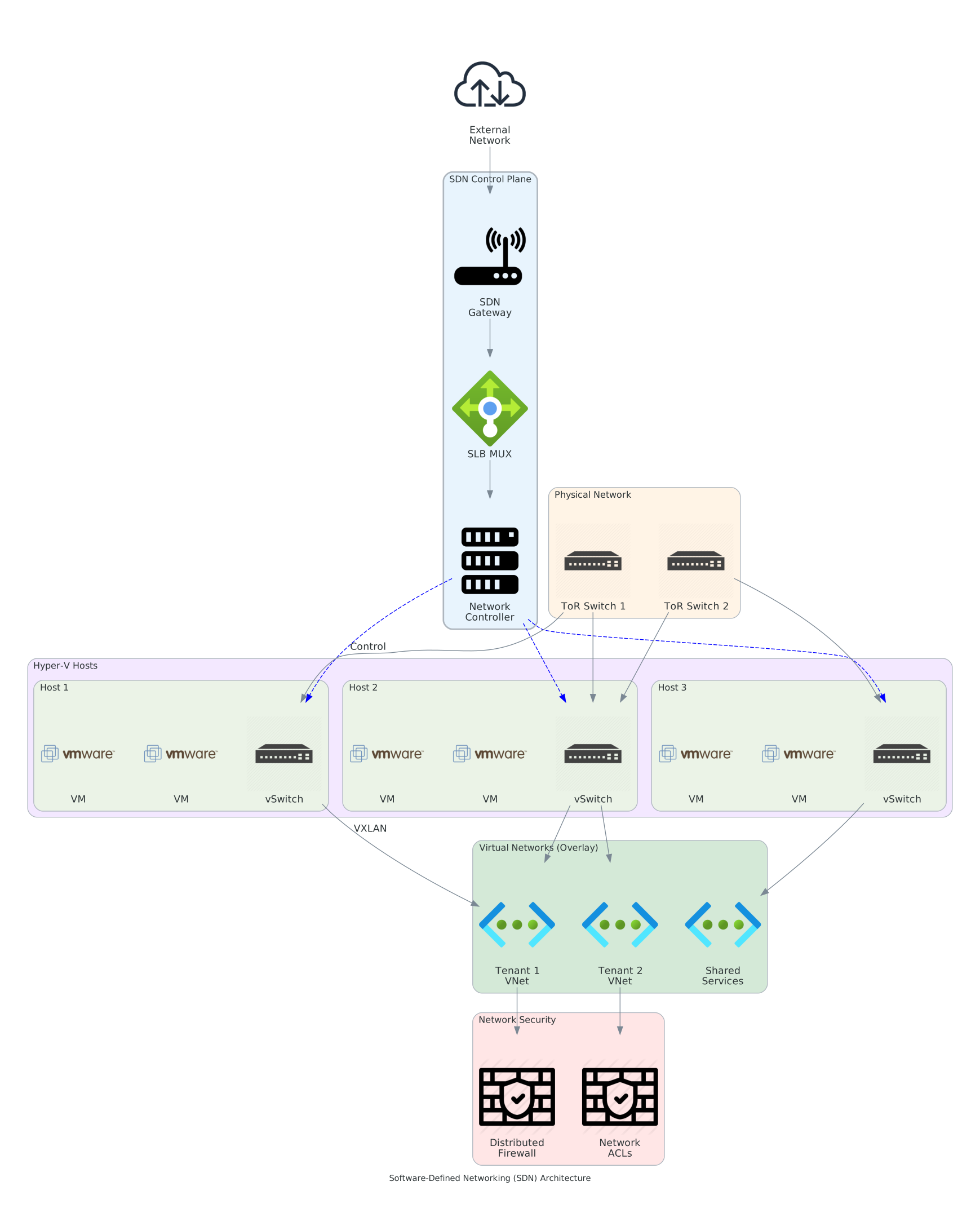 Figure 1: Azure Local Software-Defined Networking (SDN) architecture
Switch Embedded Teaming (SET)
Modern Azure Local deployments use SET for network adapter redundancy and performance.
Basic Concepts
What is SET?
- Virtual switch-based teaming (replaces older NIC teaming)
- Hardware-independent
- Built into Hyper-V switch
- Supports bandwidth aggregation and failover
Teaming Modes:
- Switch-Independent: Each team member operates independently
- LACP (Link Aggregation Control Protocol): Coordinated with physical switch
- Static: Simplified LACP without negotiation
Configuration
Creating SET Teams:
New-VMSwitch -Name "ConvergedSwitch" -NetAdapterName @("NIC1", "NIC2") `
  -AllowManagementOS $true -EnableEmbeddedTeaming $true

Set-VMSwitch -Name "ConvergedSwitch" -DefaultFlowMinimumBandwidthWeight 20
Benefits:
- Automatic failover (sub-second)
- Load balancing across adapters
- No special switch configuration needed (switch-independent mode)
- Native Hyper-V integration
VLAN Configuration
VLANs logically separate network traffic without physical separation.
VLAN Planning
Management VLAN:
- Management OS network
- Azure Local system management
- Out-of-band connectivity
- Typical: VLAN 100-199 range
Storage VLAN:
- Storage Spaces Direct replication
- RDMA-optimized
- Ultra-low latency requirement
- Typical: VLAN 200-299 range
Cluster VLAN:
- Inter-node cluster communication
- Heartbeat and status monitoring
- Moderate latency tolerance
- Typical: VLAN 300-399 range
Customer VLANs:
- Virtual machine workload networks
- One or more per tenant
- Isolated for security
- Typical: VLAN 400-4000 range
VLAN Tagging
Physical Port Configuration:
Physical NIC 1 → Untagged (Native) VLAN 100 (management)
Physical NIC 2 → Tagged VLAN 200, 300, 400-420
Physical NIC 3 → Tagged VLAN 200 (storage redundancy)
Virtual Port Configuration:
# Management virtual NIC (on management OS)
Add-VMNetworkAdapter -ManagementOS -Name "Management" -SwitchName "ConvergedSwitch" -Vlan 100

# Storage virtual NIC
Add-VMNetworkAdapter -ManagementOS -Name "Storage" -SwitchName "ConvergedSwitch" -Vlan 200

# Cluster virtual NIC
Add-VMNetworkAdapter -ManagementOS -Name "Cluster" -SwitchName "ConvergedSwitch" -Vlan 300
RDMA Optimization
RDMA (Remote Direct Memory Access) enables high-performance storage communication.
iWARP vs. RoCE
iWARP (Recommended for Most):
- Works over standard Ethernet
- No special switch requirements
- Lower latency than TCP/IP
- Easier to troubleshoot
- Supported by most vendors
RoCE (Higher Performance):
- More complex setup
- Requires Priority Flow Control (PFC)
- Congestion management (ECN)
- Lower latency than iWARP
- Requires network expertise
RDMA Configuration
Prerequisites:
- Network adapter supporting RDMA (Mellanox, Intel, Chelsio, etc.)
- Latest drivers installed
- Network properly segmented (no congestion)
- Quality of Service configured
Enable RDMA:
Enable-NetAdapterRdma -Name "Storage"
Get-NetAdapterRdma -Name "Storage" | Select-Object Name, RdmaVersion, Enabled
Verify Performance:
# Run RDMA test
ntttcp -r -m 16,*, 10.0.20.5 -x -t 30 -l 100000 -tcp
Quality of Service (QoS)
QoS ensures critical traffic (storage) maintains performance even under heavy load.
QoS Policies
Priority Levels:
Priority 7 (Highest): Storage traffic (RDMA)
Priority 6: Cluster heartbeat
Priority 5: Management
Priority 1-4: Customer workload traffic
Priority 0 (Lowest): Best-effort background
Configuration:
# Create storage priority policy
New-NetQosPolicy -Name "Storage" -VlanTag 200 -PriorityValue 7 -PolicyDirection Both

# Create cluster priority policy
New-NetQosPolicy -Name "Cluster" -VlanTag 300 -PriorityValue 6 -PolicyDirection Both
Bandwidth Allocation
Per-Virtual NIC:
# Minimum guarantee for management
Set-VMNetworkAdapterBandwidthLimit -ManagementOS -VMNetworkAdapterName "Management" `
  -MinimumBandwidthAbsolute 100Mbps

# Minimum guarantee for storage
Set-VMNetworkAdapterBandwidthLimit -ManagementOS -VMNetworkAdapterName "Storage" `
  -MinimumBandwidthAbsolute 1Gbps
Network Performance Monitoring
Key Metrics
Latency:
- Storage network: < 500 microseconds ideal
- Management network: < 1 millisecond acceptable
- Cluster network: < 5 milliseconds
Throughput:
- Storage: 20-25 Gbps typical utilization (25 Gbps line)
- Management: < 1 Gbps typical
- Cluster: < 1 Gbps typical
Packet Loss:
- Target: < 0.001% (1 in 100,000)
- Monitor: Use network switch counters
Monitoring Tools
PowerShell Cmdlets:
# Network adapter statistics
Get-NetAdapterStatistics -Name "Storage"

# Virtual switch port statistics
Get-VMSwitchExtensionPortFeature -SwitchName "ConvergedSwitch"

# Live migration/storage performance
Get-StorageJob | Select-Object Name, PercentComplete, BytesProcessed
Performance Monitor Counters:
- Hyper-V Virtual Network Adapter (bytes sent/received)
- Network Interface (packets/sec, errors)
- Storage (I/O latency, queue depth)
Multi-Path I/O (MPIO)
MPIO provides redundant paths for storage access.
Configuration
Supported Storage Types:
- Fibre Channel SANs
- iSCSI targets (rarely used with Azure Local)
- Parallel SCSI (legacy)
Note: Azure Local Storage Spaces Direct doesn’t require MPIO (built-in redundancy via mirrors).
Network Troubleshooting
Common Issues and Solutions
High Storage Latency:
- Check for network congestion (use Performance Monitor)
- Verify RDMA enabled on all adapters
- Check for VLAN configuration errors
- Verify QoS policies in place
Intermittent VM Connectivity:
- Check for packet loss on network path
- Verify no VLAN tag mismatches
- Check physical switch spanning-tree convergence
- Monitor for network timeouts in cluster events
Storage Rebuild Slow:
- Check network saturation
- Verify no concurrent heavy workloads
- Consider network bandwidth bottleneck
- Review storage latency
Key Takeaways
- Network Segmentation: Use VLANs for logical separation
- Redundancy: Team adapters for automatic failover
- Performance: Enable RDMA and QoS for storage traffic
- Monitoring: Track latency, throughput, and packet loss
- Troubleshooting: Start with connectivity, then performance